
DayByDay is quick on the surface and deep underneath. Most things take a single tap — but a long-press or a swipe often unlocks a faster shortcut you'd never know was there. Here are the ones worth learning. None of them are required; they're just little time-savers once you're in a rhythm.
The one rule to remember
When in doubt, hold it down. All over the app, a quick tap does the obvious thing and a long-press (press and hold) reveals a faster or more detailed option.
Today & Quick Add
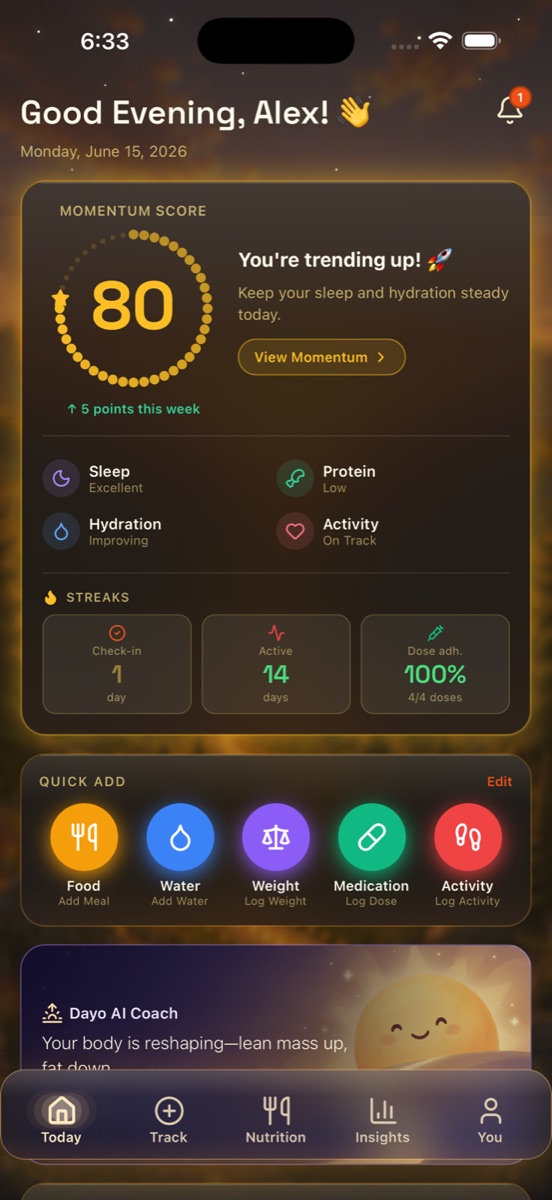
The five round Quick Add buttons on Today aren't just shortcuts — some hide a second action when you hold them.
| Do this | And you get |
|---|---|
| Tap <strong>Food</strong> | Open the add-a-meal sheet |
| <strong>Hold</strong> Food | A quick Protein / Fiber stepper — log macros in seconds without searching (tap − to undo the last quick entry) |
| Tap <strong>Water</strong> | Instantly add 8 oz — no sheet, no confirm |
| <strong>Hold</strong> Water | Pick a custom amount instead |
| Tap <strong>Weight / Medication / Activity</strong> | Open that log sheet |
| Tap <strong>Edit</strong> (top-right of Quick Add) | Choose which buttons appear, and their order |
The Track tab
The Track screen even tells you: “Tap to log · Hold to view history.” It's easy to miss.
- ✦Tap any row (Weight, Medication, Sleep, Mood…) to open its quick-log sheet.
- ✦Hold a row to jump straight to that metric's full history and detail screen — its charts, trends, and past entries.
Nutrition & food logging
- ✦In food search, tap a result to log its default serving as-is — long-press the same result to open the serving editor and adjust the portion first.
- ✦Tap Fine-tune at the top of Nutrition to adjust your calorie, protein, and fiber targets.
- ✦On the Foods screen: tap a favorite to add it to today, long-press to edit it, and swipe to delete.
- ✦Saved a meal (a bundle of foods)? Tap it once to log every item at once; tap the ⌄ to peek at what's inside.
Log a repeat meal in one tap
Eat the same breakfast most days? Add it once, save it as a favorite or a meal, and re-logging it later is a single tap — no searching.
Rearranging & customizing
- ✦Drag to reorder. In Customize Tab Cards (You → Customize Tab Cards, or the ⚙︎ on a tab), press and hold a card's drag handle to move it, and show or hide any card.
- ✦Each tracker remembers its own layout — e.g. Weight → Settings → Customize Cards has its own Visible / Hidden lists and a Reset to Default.
- ✦Use the ‹ date › pill at the top of Nutrition, Weight, GLP-1 and more to step back to an earlier day.
- ✦On the Weight trend, the 1W / 1M / 6M / 1Y / All chips change the chart range.
- ✦Tap a collapsible section header (like in the dose or sleep forms) to expand or collapse it.
Add the Home Screen widget (iPhone)
DayByDay has a Home Screen widget so your progress greets you without even opening the app.
- 1Long-press an empty area on your iPhone Home Screen.
- 2Tap the + in the top corner.
- 3Search for DayByDay and pick a widget size.
A few more worth knowing
- ✦Pull down to refresh on most screens to re-sync the latest data.
- ✦Tap the 🔔 bell on Today to open your Notification Center.
- ✦Tap the 🔖 bookmark on any insight to flag it for your next appointment — it's added to your Health Report automatically. See Reports & your doctor.
- ✦Try Journey Mode (You → Appearance) — the warm sunset interface that makes checking in feel like a reward.
- ✦Most numbers you can tap, you can also edit — tap a logged entry to fix a typo.
Found something we didn't list?
DayByDay keeps gaining little touches. If you discover a handy shortcut — or wish one existed — tell us at support@mydaybyday.app. We read every note.