
Almost everything you can adjust in DayByDay lives in one place: the You tab. This page is a gentle walkthrough of each setting — what it does and why you might touch it. Nothing here is required; the defaults work beautifully. Tweak only what helps.
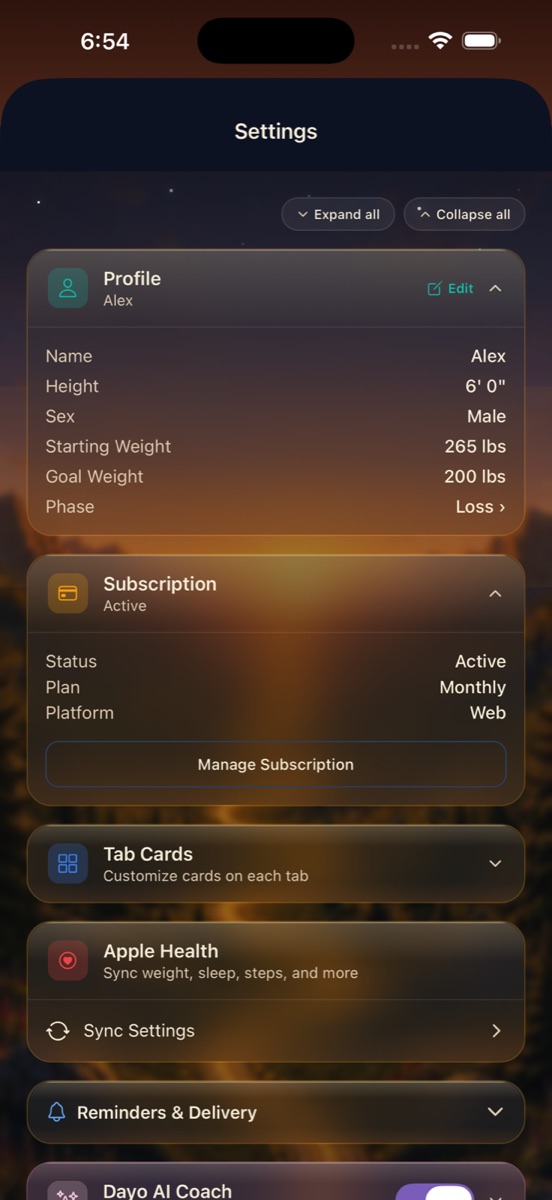
Profile
Your profile is the foundation everything else is built on, so it's worth getting right. Tap Edit on the Profile card to set:
- ✦Name — how DayByDay greets you. Only you ever see it.
- ✦Height and Sex — used for body-composition math (BMI, lean mass, BMR, and friends).
- ✦Starting weight and Goal weight — the bookends of your progress bar and the basis for your goal-date projection.
- ✦Phase — whether you're in a Loss, Maintain, or other phase, so the app frames your numbers the right way.
You can change your goal anytime
Adjusting your goal weight or phase never erases history — it just updates your progress, projections, and milestones to match where you're headed now. No penalty for changing your mind.
Subscription
Your plan card shows your current plan — Free, Core, or Plus — along with status, billing cycle, and platform. Tap Manage Subscription to upgrade, switch billing, or cancel. The full breakdown lives in Plans & billing.
Tab Cards
Under Customize Tab Cards, you decide which cards appear on each tab and in what order. Drag the handle to reorder, tap to show or hide, and reset to default whenever you want. Want the Sleep card at the top of Today and the Lean Mass note tucked away? Done. Your app, your priorities.
Apple Health sync
Tap Health Sync (under Data & Reports) to connect Apple Health so weight, steps, sleep, workouts, heart rate, and more flow in on their own — no double entry. The card shows whether sync is on or off at a glance. Full details are in Apple Health sync.
Reminders & Delivery
This is where you decide how — and how often — DayByDay nudges you. Nothing is naggy by default; turn on only what's helpful.
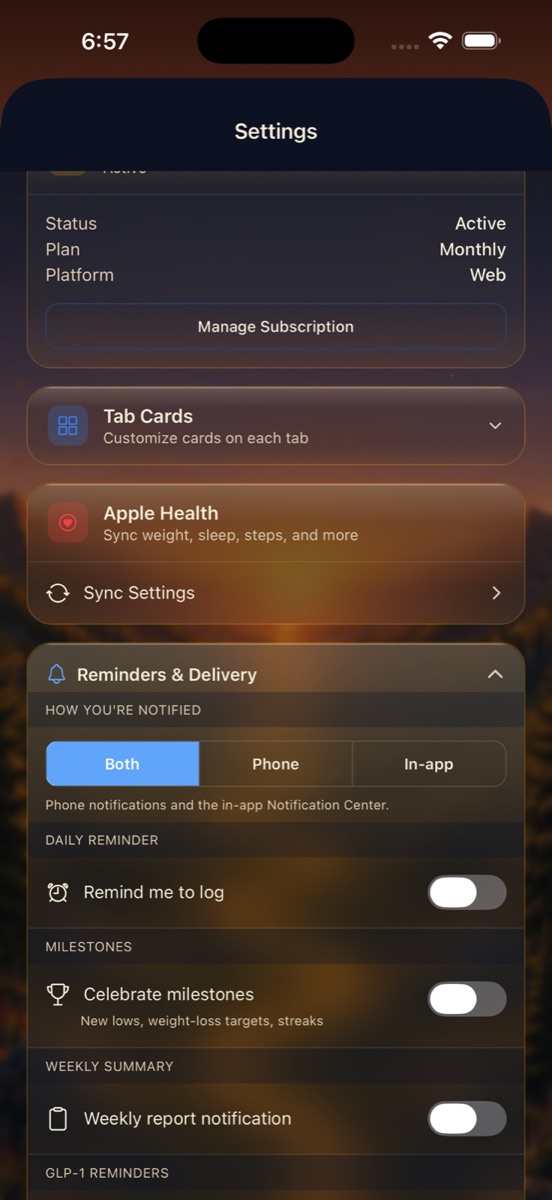
- ✦How you're notified — pick Both (phone notifications and the in-app Notification Center), Phone only, or In-app only.
- ✦Daily reminder — a gentle nudge to log your check-in.
- ✦Milestones — celebrate new lows, weight-loss targets, and streaks when you hit them.
- ✦Weekly summary — a heads-up when your weekly read is ready.
- ✦GLP-1 reminders — a reminder when your next dose (and your refill) is due.
Dayo AI Coach
Dayo is your AI coach (powered by Anthropic Claude), and this is where you control its daily read. Dayo only ever speaks from your real data — a plain-language note each morning and a deeper Story each week. It's part of Core; the nutrition-aware version comes with Plus. Meet Dayo in The Insights tab.
Appearance
Choose the look that fits your mood and your eyes: clean Light, restful Dark, or our signature Journey Mode — a warm sunrise-to-sunset interface that makes checking in feel like a small reward instead of a chore. Switch anytime; it takes effect instantly.
Units
Set your preferred units — lbs or kg for weight, inches or cm for measurements. DayByDay converts all your existing history automatically when you switch, so you never lose a single data point.
Looking for account or data controls?
Sign-in, email and password, exporting your data, and deleting your account all live under Settings → Account. See Your account.