Your daily home base
The Dashboard is the first screen you see when you open DayByDay. It's designed to give you a complete picture of your day in one glance — no digging through tabs required.
Every card is customizable. If something isn't relevant to your journey, you can hide it or reorder the cards to put what matters most at the top.
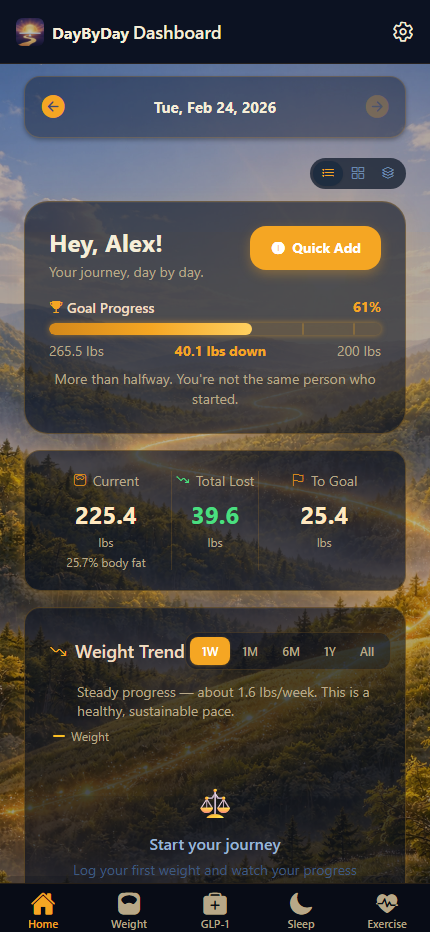
Goal progress card
The goal progress card shows three numbers: how much you've lost, how much is left to your goal, and your percentage complete. It updates automatically every time you log a new weigh-in.
Setting your goal weight
You set your goal weight during onboarding. You can update it anytime in Settings → Profile. DayByDay recalculates your progress and predicted date automatically.
Today's Pulse
Today's Pulse is a quick snapshot of four key health signals for the current day: your sleep quality from last night, whether you've logged your medication, your step count, and your activity status.
Each signal shows a simple status icon — green means you're on track, gray means no data yet for today. It's a fast way to see if anything needs attention before your day gets going.
Momentum streak
Your streak counts how many days in a row you've checked in — meaning you've logged at least one piece of data (a weigh-in, a dose, a sleep night, or steps). The goal is to build a habit of showing up consistently.
If you miss a day, your streak resets to zero. Don't stress about it — just start a new one. Consistent check-ins over time matter more than a perfect streak.
What counts as a check-in?
Any data you log counts — a weigh-in, a GLP-1 dose, a sleep night, steps imported from Apple Health, or a manual exercise log. You don't have to log everything every day.
Coach Notes
Coach Notes are personalized, plain-language insights generated from your actual data. You'll see things like "You're losing 2.3 lbs/week — right on track" or "Your sleep improved 18% this week."
These notes update as your data changes. They're designed to feel like a check-in from a supportive coach, not a report card. The better your data, the more specific your notes become.
Coach Notes are not medical advice
Coach Notes are generated from your personal tracking data and are meant for motivation and awareness only. They do not constitute medical advice. Always consult your healthcare provider for guidance on your health journey.
Journey Mode
Journey Mode is a dark, sunset-themed interface that transforms DayByDay into something that feels more like a personal ritual than a data entry app. Deep oranges, purples, and warm tones replace the standard light interface.
It's designed for evening check-ins — that quiet moment at the end of the day when you reflect on how things went. Many people find it makes logging feel like a reward rather than a chore.
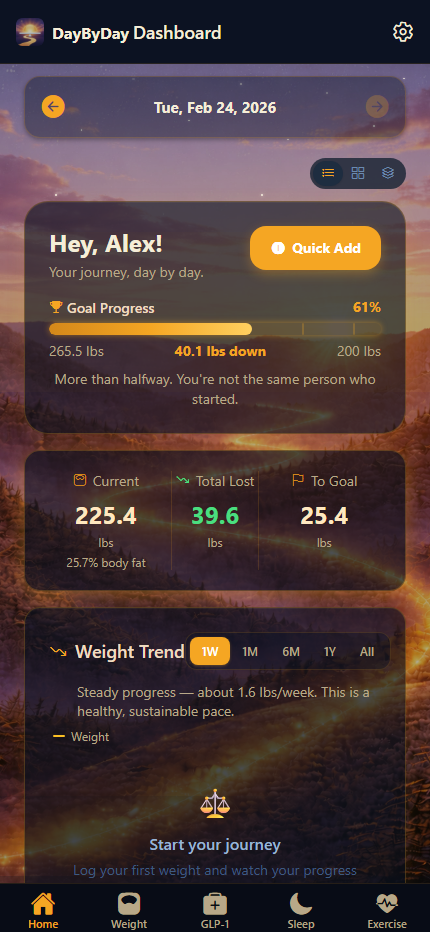
To enable Journey Mode, tap the sun/moon icon in the top right of the Dashboard, or go to Settings → Appearance → Journey Mode. It can follow your system's dark mode schedule or stay on permanently.
Customizing your dashboard cards
You can reorder, show, or hide any dashboard card to build a layout that works for you. Go to Settings → Dashboard to manage your cards.
- 1Open Settings from the top right of the Dashboard.
- 2Tap Dashboard under the Personalization section.
- 3Toggle cards on or off, or drag them to reorder.
- 4Your layout is saved automatically.
Why don't I see Coach Notes yet?✦
Coach Notes need at least a week of data to generate meaningful insights. Keep logging daily and they'll appear once there's enough to work with.
Can I use Journey Mode on the web app?✦
Yes. Journey Mode works on both the iOS app and the web app at web.mydaybyday.app. Toggle it the same way — the sun/moon icon in the top right.